1. Install Winnow
Winnow keeps your library on your device. You do not need a Winnow account, a subscription, or an API key to begin.
- Open GitHub Releases and choose a published release for your platform.
- On Windows x64, run the
-setup.exeinstaller. For a portable copy, extract the entirewin-x64.ziparchive and runWinnow.exe. Both include the .NET runtime. - On Ubuntu 24.04 x64, install the
.debwith the command below, then open Winnow from the application menu. The Linux portable archive is an alternative; see the native dependency list.
sudo apt install ./Winnow-<version>-linux-x64.debWindows packages are currently unsigned. Windows browser sign-in requires Microsoft’s Evergreen WebView2 Runtime. Linux currently has more limited Epic/GOG discovery and no embedded sign-in or persistent secret storage; start with local Steam discovery there.
2. Walk through first-run setup
Open your launchers and let their libraries finish updating before starting Winnow. Winnow reads their local files without modifying them. The window opens after the local scan; descriptions, artwork, and update information arrive in the background.
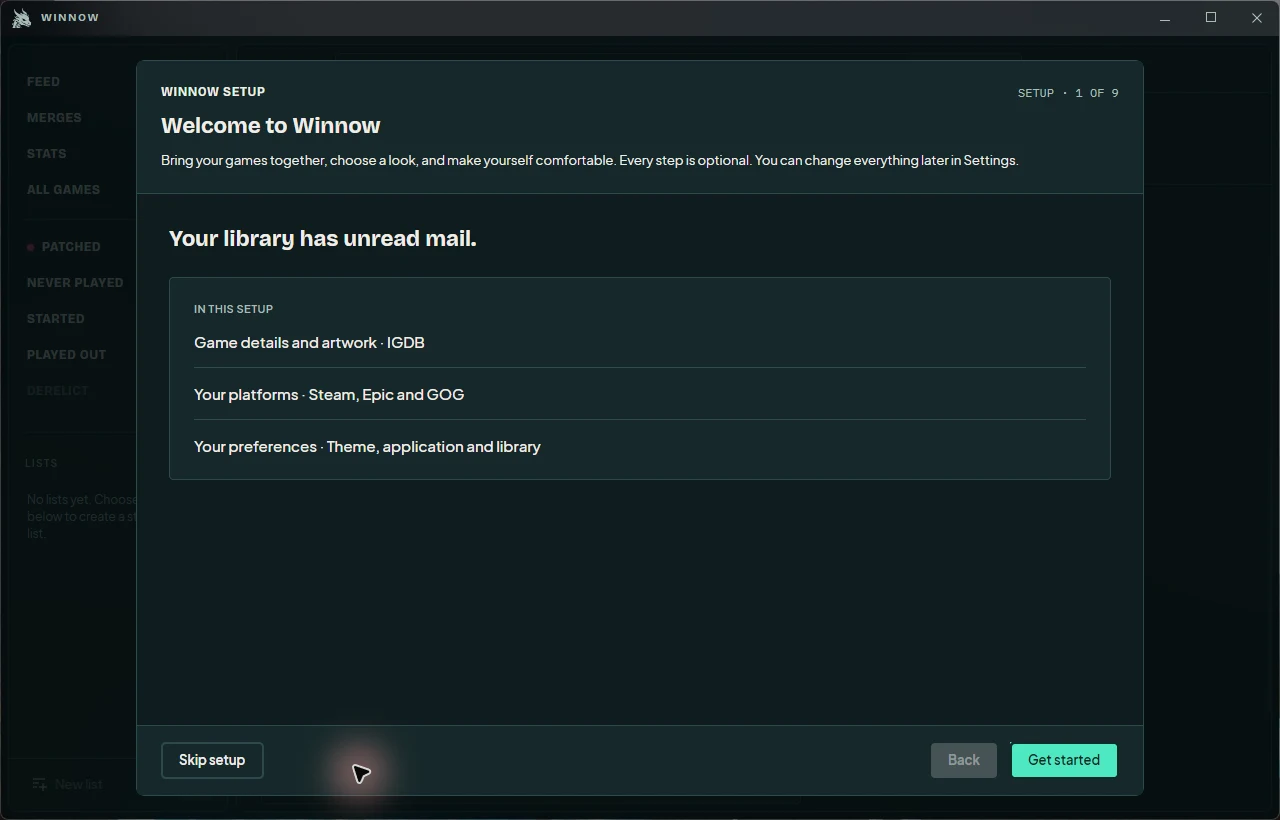
- The setup wizard walks through IGDB, Steam, Epic, GOG, theme, application preferences, and library preferences. For the credential step, follow the IGDB setup tutorial; you can skip it and return later.
- Use Continue to advance or Back to revisit a step. Optional connections can wait: choose Skip this step, or Skip setup to go straight to your library.
- Preferences save as you change them. Credential forms require their explicit Save action; skipping a step discards unsaved secret fields.
- Allow the first background pass time to finish. A large library can take a minute or two to begin filling out.
If you close the app during setup, it resumes the unfinished step. To revisit it later, use Settings → Application → Run setup again on either desktop or fullscreen.
3. Connect Steam
Local Steam files provide installed games and locally recorded playtime and last-played information. An optional connection adds owned games that have never been installed on this PC.
- Open Settings → Platforms → Steam and check the local-file and connection status.
- Choose one connection method: Sign in to Steam opens Steam’s own sign-in flow; Steam Web API key lets you save a key instead. Read the explanation beside each method before choosing.
- For browser sign-in, review the consent screen and decide whether to allow purchase-history capture. Complete Steam’s authentication in the window that opens.
- For an API key, choose Get a key if needed, enter your key in the Steam configuration, and choose Save. This method cannot read purchase history; the account filter becomes available after an import confirms your account.
- Return to Platforms and confirm the connection status. Give background synchronization time to add the rest of your collection.
You only need one method. If both are configured, scheduled updates use the API key. A sign-in session may need renewing; use Sign in again when its status asks you to. Purchase-history tools are in the Steam settings entry.
4. Add Epic and GOG
Epic Games
- On Windows, launch the Epic Games Launcher and let it update its local library cache.
- Open Settings → Platforms → Epic. Local discovery reads cached owned titles and installation state.
- For account inventory and acquisition dates, choose Sign in to Epic and complete Epic’s sign-in window. Check the status on returning to Winnow.
GOG
- Let GOG Galaxy synchronize on Windows before Winnow scans.
- Open Settings → Platforms → GOG to inspect discovery status. Winnow reads Galaxy ownership, available play facts, and installation state, with a registry fallback for installations.
There is no GOG sign-in connection in Winnow. These integrations depend on what the launchers have recorded locally; connecting another store does not fill gaps in GOG’s data.
5. Find something to play
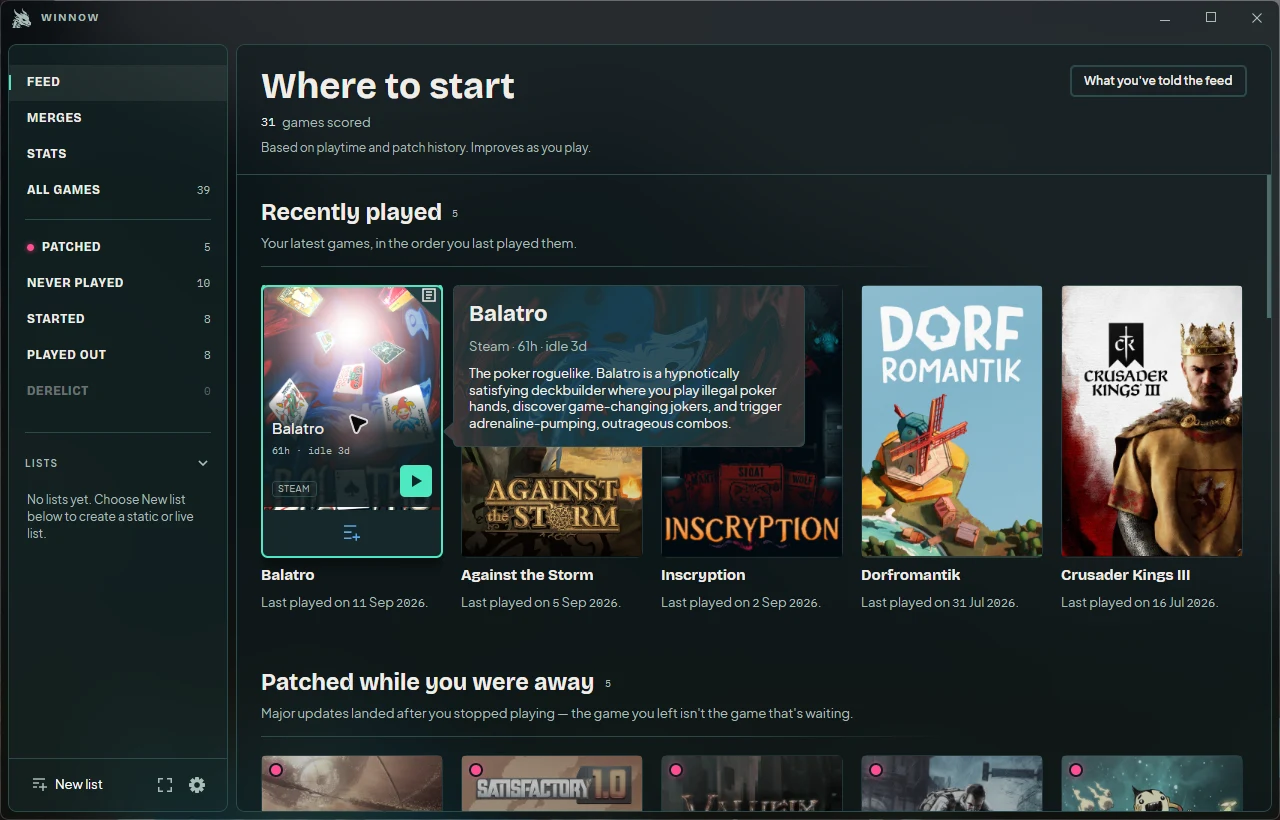
- Open Feed on desktop or For you in fullscreen. Read the reason shown with a recommendation to see why it appeared.
- On desktop, hover a cover to preview its details. Click the artwork to open the game’s details. Feed actions let you add it to a list, postpone it with Not now, or mark it Not interested.
- Choose Play for an installed game. Keep Winnow running to let session tracking observe your play.
- Use the full library when you already know what you want. Search, filter, and choose a default sort that suits your collection.
The Patched group builds gradually: the update poller spreads a sweep across seven days. An empty group on the first day does not mean setup failed.
If something is missing
- Only installed Steam games appear
- Check Steam’s connection status. Local files cannot supply every untouched game in an account; connect a Web API key or sign in.
- The browser sign-in window will not open
- On Windows, check that the Evergreen WebView2 Runtime is installed. Steam’s API-key method does not require that browser. Embedded sign-in is not available on Linux.
- A game has no cover or summary yet
- Let enrichment finish and check your connection. IGDB and additional artwork providers are optional; follow the metadata setup to add more sources.
- A game is present but not visible
- Clear browsing filters and inspect Library settings for hidden games, explicit-content settings, and the content age limit. Non-game entries and grouped expansions can also change what appears.
For a reproducible failure, note the version and source commit in Settings → Application → About Winnow. Include the platform, installation method, and exact steps in a GitHub issue. Logs are in the data directory’s logs folder; review anything you attach.