Find the right settings
On desktop, open the settings cog at the bottom of the navigation rail. In fullscreen, switch to Settings from the main navigation. Both surfaces share account connections, library preferences, plugin settings, theme, cover-art mode, and cover dimming.
Browsing positions and filters are separate. Fullscreen also has its own text size, interface scale, screen margins, and motion preferences. Changing the TV layout does not resize the desktop interface.
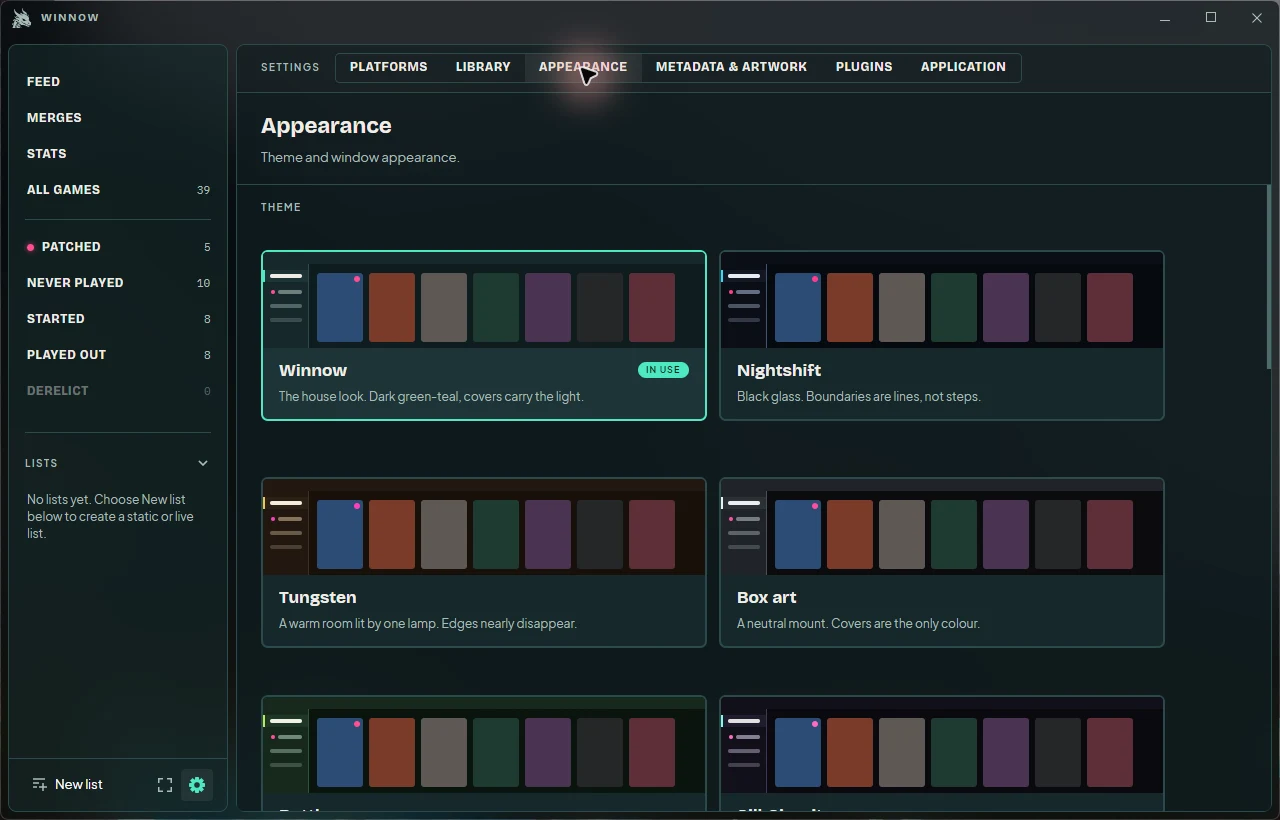
Choose a theme
- Open Settings → Appearance. On desktop, select a theme from the previews. In fullscreen, open Theme and choose a name.
- The new palette applies immediately and is shared between desktop and fullscreen. Return to your library to see it alongside your artwork.
- In fullscreen Appearance, use Dim dormant covers to choose whether games you have not played recently look quieter. This preference also applies to desktop.
Cover dimming is a visual cue, not a filter: it does not hide games or change their play history. To change which games appear, use the library controls below.
IGDB setup: start here
IGDB adds game details and artwork alongside Winnow’s built-in Steam sources. It is optional: you can keep using your library while setting it up, or skip it entirely. You need two values from a Twitch developer application: a Client ID and a Client secret.
The Twitch branding is expected: IGDB uses Twitch credentials for API access. You are registering a personal application for Winnow to use; you do not need to write code or run a website. Winnow obtains its own access token from those credentials, so you do not need to follow the API documentation’s token-request examples.
This walkthrough covers registration, saving the credentials, your first sync, and troubleshooting. If you already have a pair for Winnow, start at saving.
Platform note: saving a secret in Winnow currently requires Windows. On Linux, use the environment-variable instructions after creating your credentials.
IGDB: 1. Register with Twitch
- Sign in to the Twitch developer console. Verify your account’s email and enable two-factor authentication in Security and Privacy, then refresh the console.
- Under Applications, choose Register Your Application. Complete the fields below, the CAPTCHA if shown, and choose Create.
| Field | What to enter |
|---|---|
| Name | A unique name such as Winnow library yourname. Add a suffix if taken. |
| OAuth Redirect URLs | http://localhost, then Add if shown. IGDB does not use this callback; no local server is needed. |
| Category | Choose the closest applicable category, such as Application Integration if offered. |
| Client Type | Confidential. Public applications cannot generate the secret IGDB needs. |
Return to Applications, choose Manage beside your entry, copy its Client ID, then choose New Secret and copy the generated value. Keep the secret private. Generating another invalidates the previous secret.
These requirements come from IGDB’s account setup and Twitch’s registration guide. If the console changes its wording, use those official instructions.
IGDB: 2. Save in Winnow
- On desktop, open Settings → Metadata & artwork and find the IGDB metadata card. In fullscreen, open Settings → Metadata & artwork → IGDB metadata. The first-run wizard also offers this credential form.
- Paste the application’s Client ID into Client ID and its Client secret into Client secret. Both must belong to the same application. These fields do not take your Twitch password, username, stream key, or an access token.
- Choose Save credentials before leaving the form. Simply pasting the values does not save them.
- Look for Credentials saved. Metadata refresh queued. The secret field clears after saving; that is expected. It also stays blank when you reopen settings.
Saving protects the secret on this device and applies the change immediately. It does not contact Twitch to verify the pair. Winnow checks the credentials when fetching details. There is no separate “Test connection” button.
A background metadata refresh is queued behind any current startup sync or credential refresh. Desktop title-bar progress shows that work. You do not need to restart after saving through the form.
IGDB: 3. Check your first sync
- Make sure some games are already in your library. Metadata sync updates existing games; it does not import an account’s library.
- Open Settings → Metadata & artwork → Sync metadata now. In fullscreen, go back from the IGDB credential page to find it. This gives you visible progress and a result beside the action.
- Let the operation finish. If another library operation is active, it may need to wait. Large libraries can take longer; repeatedly saving credentials will not speed up the queue.
- Open a familiar game’s details and inspect its description, release year, genres, and artwork. Some may already have come from Steam, so unchanged artwork alone does not indicate a failure.
Metadata sync finished means the pass completed, not that every game matched. Sync uses cached metadata when available and preserves manual matches, field edits, and artwork choices. It does not force every record to download again.
For a game that remains unmatched or shows the wrong entry, open its details actions and choose Wrong game? on desktop or fullscreen. Search by title or numeric IGDB ID, compare the candidates, and choose Use this for the correct game. A manual match shows Matched by you. Use Clear to return it to automatic matching.
Matching and authentication are separate. If title search returns candidates but automatic matching misses a game, Winnow can access metadata; check the game’s identity rather than immediately replacing your credentials. Existing cached results can still be available offline.
IGDB: fix common setup problems
- Twitch will not let me register
- Check email verification and 2FA, refresh the developer console, and use a unique application name. Confirm the redirect URL was added to the form.
- There is no New Secret button
- Check that you are managing the intended application and that its client type is Confidential. A Public application does not provide the required secret.
- Winnow asks for both fields, but I already saved a secret
- The blank secret field is not a placeholder for the saved value. To replace credentials, enter both the ID and secret again before saving.
- Saved credentials need to be re-entered
- The stored pair cannot be read on this device. This can happen after moving data to another Windows account or computer. Enter both values and save again.
- The device could not protect the secret
- Nothing was saved. Persistent secret storage is currently Windows-only; use the environment method below where storage is unavailable.
- Sync asks me to add credentials
- Check that Save credentials succeeded and that you opened the intended library. A separate
--data-dirhas its own saved settings. Environment variables must be available to the process that starts Winnow. - Credentials saved, but sync cannot finish
- Check your connection, then recheck that the ID and secret came from the same Twitch application. If you generated a replacement secret, save the new pair in Winnow. Partial-failure messages can also reflect a provider outage or another metadata step; they do not prove the secret is wrong.
- Only a few games are missing details or artwork
- Try Wrong game? for those games. An entry may lack particular metadata or artwork, and a saved manual field or image takes priority over automatic updates. IGDB does not supply icon candidates in Winnow’s artwork browser.
To replace a lost or exposed secret, generate a new one on the same Twitch application, then enter both values and save in Winnow. To remove the local pair, choose Remove saved credentials. Environment or local configuration credentials remain available as a fallback; remove those too if you want Winnow to stop using them.
If you need help, include your Winnow version, operating system, exact status message, and an example game and store in a GitHub issue. Do not include the client secret, access tokens, or a screenshot showing them.
IGDB: environment setup
Use this alternative if Winnow cannot store a secret, including on Linux. The variable names contain two underscores. Winnow reads them when starting; fully quit an existing instance first.
In Bash, these prompts avoid putting the secret directly in the command history. Replace the last line with the path to your extracted Winnow executable:
read -r -p "IGDB client ID: " Igdb__ClientId
read -r -s -p "IGDB client secret: " Igdb__ClientSecret; printf "\n"
export Igdb__ClientId Igdb__ClientSecret
./Winnow
unset Igdb__ClientId Igdb__ClientSecret
The exported pair is available to Winnow launched from that terminal. Starting from a desktop shortcut does not inherit it. Repeat for a new terminal session, or configure your launcher’s environment privately. Environment variables are not Winnow’s encrypted credential store.
A readable pair saved in Winnow takes priority over environment values. On Windows, prefer the credential form; advanced configuration options are also listed in the repository README.
Choose artwork sources and cover fit
- For SteamGridDB backgrounds, open Settings → Plugins → SteamGridDB and save your own API key. This provider ships enabled; it matches games with known Steam app IDs, including linked copies from other stores.
- Open Settings → Metadata & artwork and reorder the available backdrop sources. The order applies immediately to desktop and fullscreen. A background you explicitly selected for a game takes priority.
- On desktop, open Display → Cover art in the library toolbar. In fullscreen, use Settings → Appearance → Cover art.
- Choose Fit to show the entire image, including padding when its proportions differ from the card, or Fill to crop the image to the card.
Cover fit is shared across both interfaces and defaults to Fit. It changes presentation, not the underlying downloaded artwork. Backdrop-source order does not change which provider supplies metadata fields.
Set your default library order
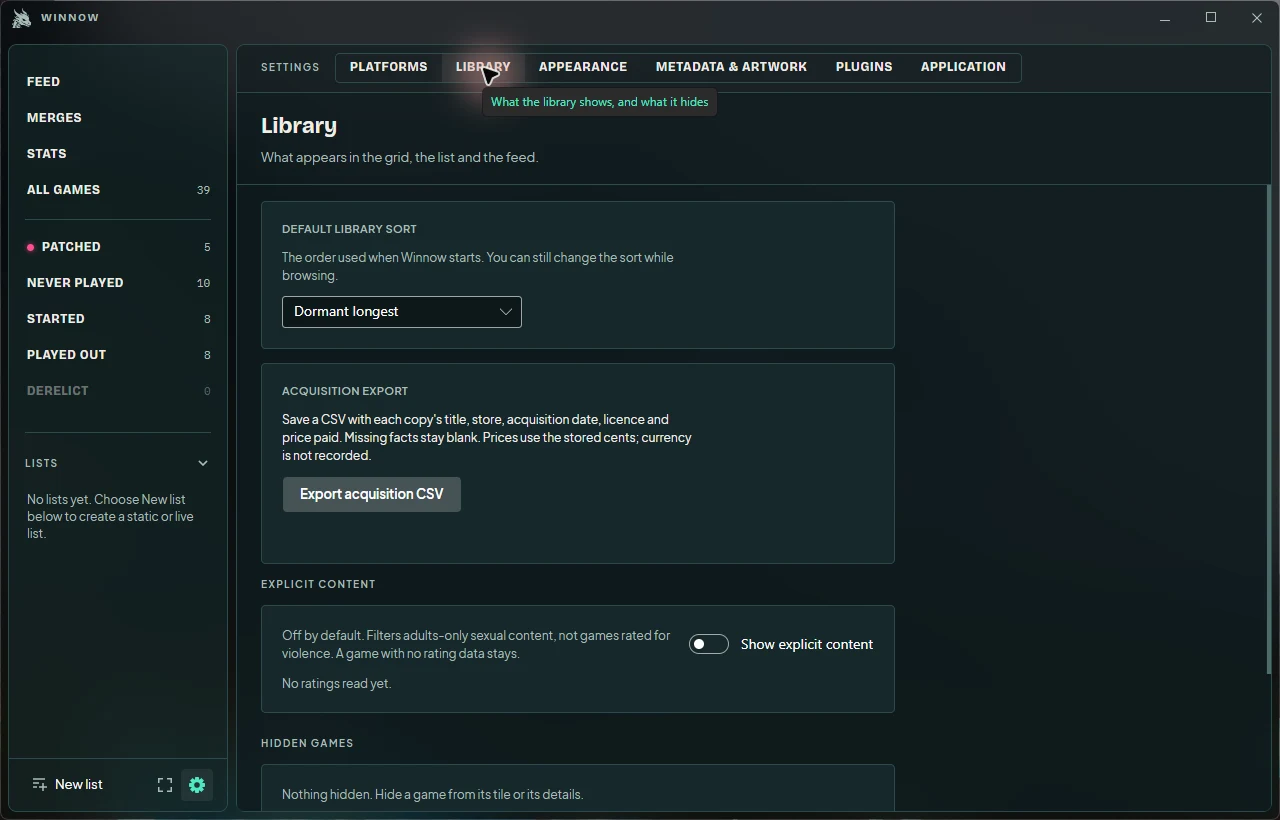
- Open Settings → Library → Default library sort on either surface.
- Choose Dormant longest, Recently played, Playtime high→low, Playtime low→high, Name A–Z, or Name Z–A.
- The preference saves immediately and is used when Winnow starts. Use browsing sort controls whenever you want a different order for the current view.
For a familiar alphabetical collection, try Name A–Z. For a quick return to a current game, try Recently played.
Decide what your library shows
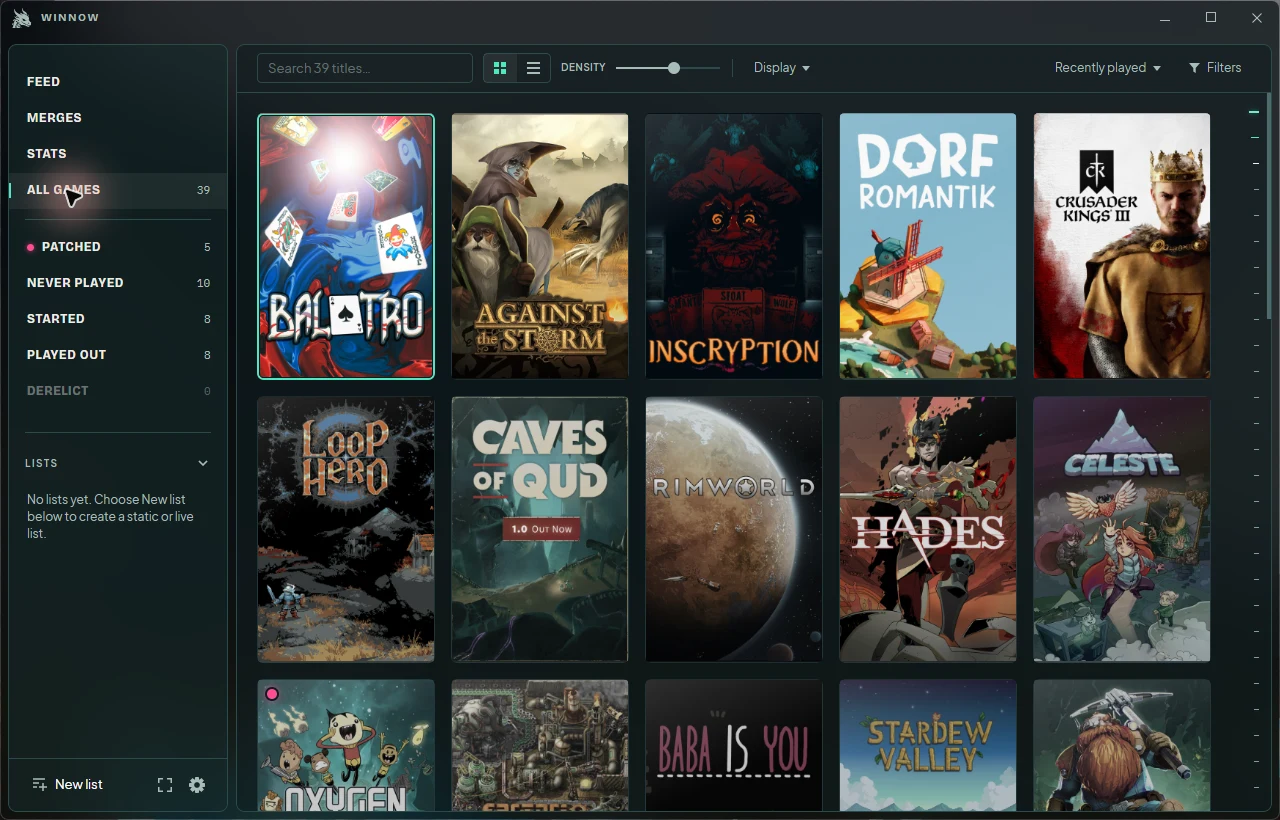
Settings → Library contains hidden-game management and hand-added games. On fullscreen, open Library tools for those management screens. Choose Unhide to bring a hidden entry back.
For a game outside a supported launcher, use Add from a file or the hand-added game form. Review the title and optional metadata before saving. An executable path lets Winnow time its sessions; optional Steam or IGDB IDs help find artwork.
Desktop’s Display menu and fullscreen’s Library settings also expose non-game visibility, expansion grouping, the content age limit, and the post-play journal prompt. The explicit-content setting filters adults-only sexual content; it is separate from an age rating for violence. Games without rating data remain visible.
Configure fullscreen for your display
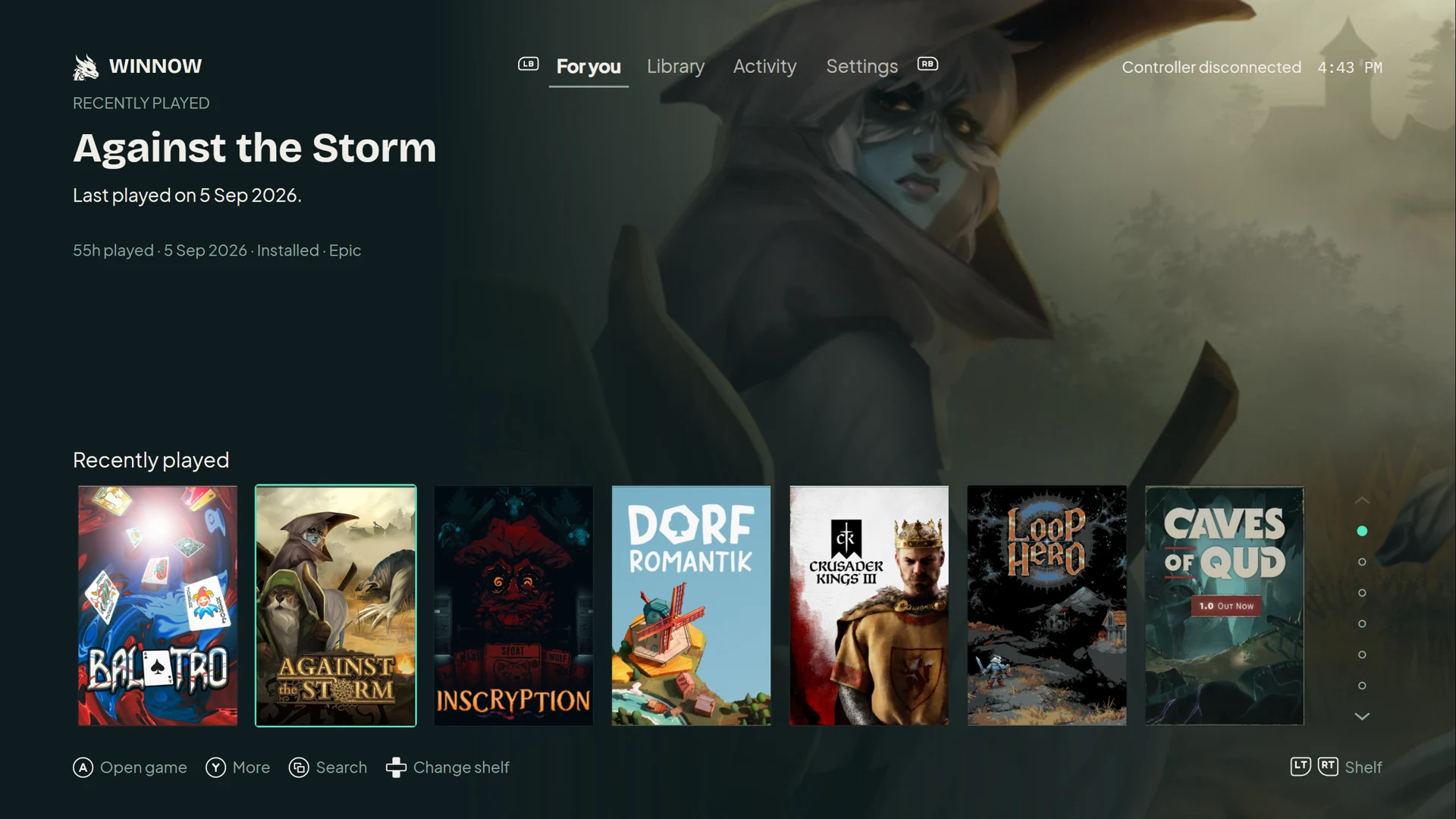
- Press F11, choose the desktop Fullscreen icon, or press the controller’s Menu/Start button to enter fullscreen.
- Open Settings → Appearance. Set Interface scale to size covers, controls, and text together. Adjust Text size separately for readability from your seat.
- Use Screen margins if a TV cuts off content. Enable Fit ultrawide displays to use the screen’s full width. Choose Reduce motion if you prefer minimal animation.
- To launch here next time, enable Settings → Application → Start in fullscreen. Windows sign-in and explicit background launches still start quietly in the notification area.
| Control | Action |
|---|---|
| D-pad / left stick | Move between games and controls |
| A / B | Select / go back |
| LB / RB | Switch main screens |
| LT / RT | Switch local sections or shelves |
| X | Play the selected installed game |
| Y | Use the action described in the footer |
| View / Back | Search while browsing |
| Menu / Start | Open the quick menu |
| Right stick up / down | Scroll long content |
The footer reflects the current screen. For example, while the on-screen keyboard is open, X backspaces and RT presses Enter. Use F11 or Exit fullscreen in the quick menu to return to the desktop window.
Keep Winnow up to date
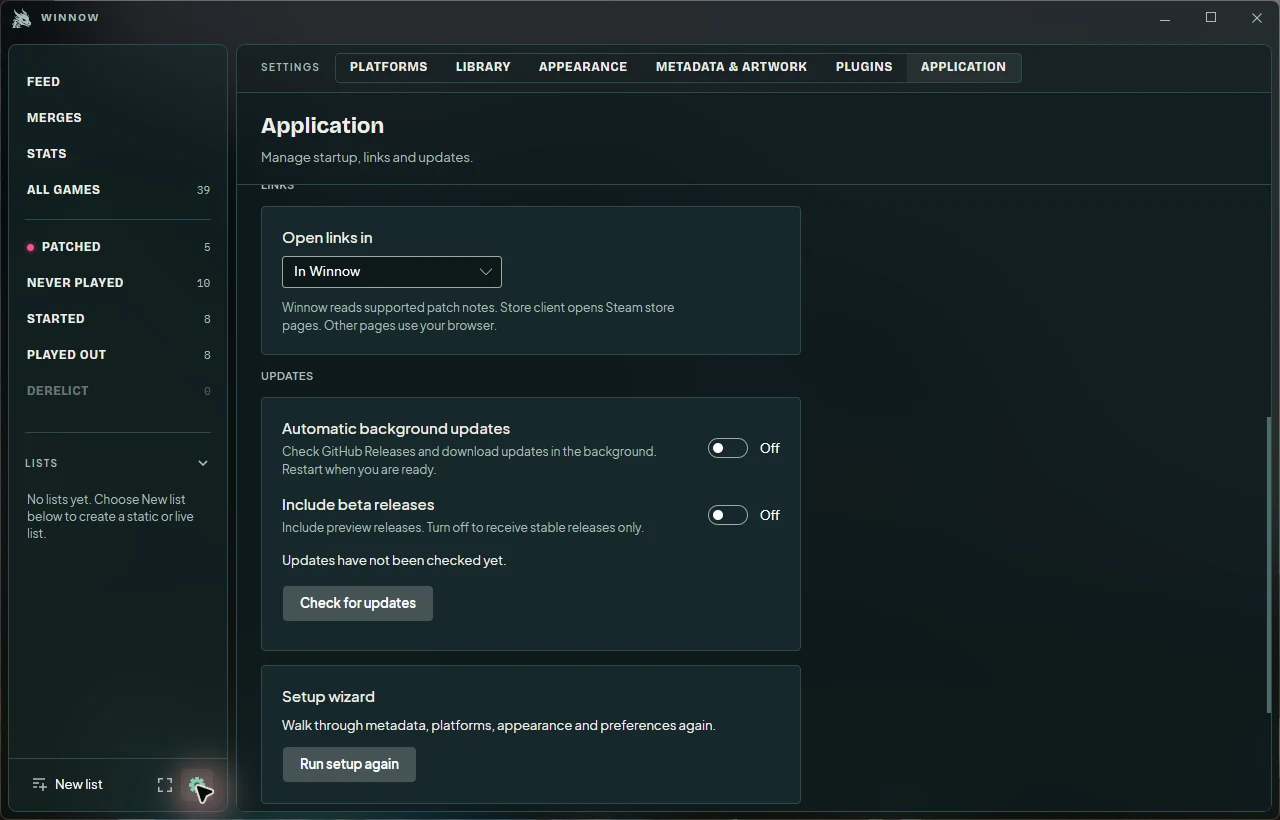
Open Settings → Application and find the update controls. Automatic checks and downloads are enabled by default; Include beta releases is off. Use Check for updates for a manual check.
Supported Windows installations and portable Windows/Ubuntu copies offer Update and restart. Downloading alone does not close Winnow. Debian packages use the package manager; other unsupported portable locations offer a release link for manual replacement. Development and CI builds do not offer release upgrades.
If an upgrade is interrupted, keep the data directory and update workspace. Install the same or a newer release, or follow the recovery instructions. Do not open an older binary against a database a newer version may have migrated.
Back up or isolate your library
On Windows, the default data folder is %LOCALAPPDATA%\Winnow. It contains winnow.db, artwork caches, themes, plugins, and logs. A portable application still uses the normal user data directory unless you explicitly choose another.
- Exit Winnow completely before making a manual backup, including any notification-area instance.
- Copy the entire data directory to your backup location. Keep any database sidecar files with the database.
- To test a copy without changing your usual library, start Winnow with an explicit data directory:
Winnow.exe --data-dir "C:\Winnow-test-library"From a source checkout:
dotnet run --project src/Winnow.App -- --data-dir "C:\Winnow-test-library"An empty directory creates an independent library; copy your backup there first if you want to inspect existing data. The argument redirects database files, caches, themes, plugins, and the browser profile. An unusable path stops startup rather than silently opening your usual library.
Stored secrets use Windows current-user encryption. A copied database is not a portable credential export; reconnect services if the destination cannot decrypt them. Backups can contain library history and credentials, so keep them private.