What a plugin can add
Provider plugins can import libraries, supply metadata and artwork, or add recommendation shelves. Their results use Winnow’s existing library cards, details, and galleries on desktop and fullscreen. SteamGridDB is the bundled artwork plugin.
Plugins execute inside Winnow with its access to your device. Enable packages only from authors you trust. This SDK does not provide a security sandbox, a marketplace, automatic plugin updates, or custom replacement screens.
Install a provider step by step
For Winnow’s own providers, open the plugins catalogue and choose Install in Winnow. A current installed copy of Winnow opens, verifies the official download, installs and enables the new plugin, and shows its settings. Desktop and fullscreen show the same progress and result. If it is already installed, the link opens its settings without replacing files or changing its enabled state.
Your browser may ask to open Winnow. If it cannot, update Winnow or use the ZIP download. Windows installers and Linux packages register the link handler; portable copies may need a manual association. To install a ZIP from the catalogue or another trusted author:
- Download the plugin package from its author. Check that it supports Winnow’s current plugin API, version 1.
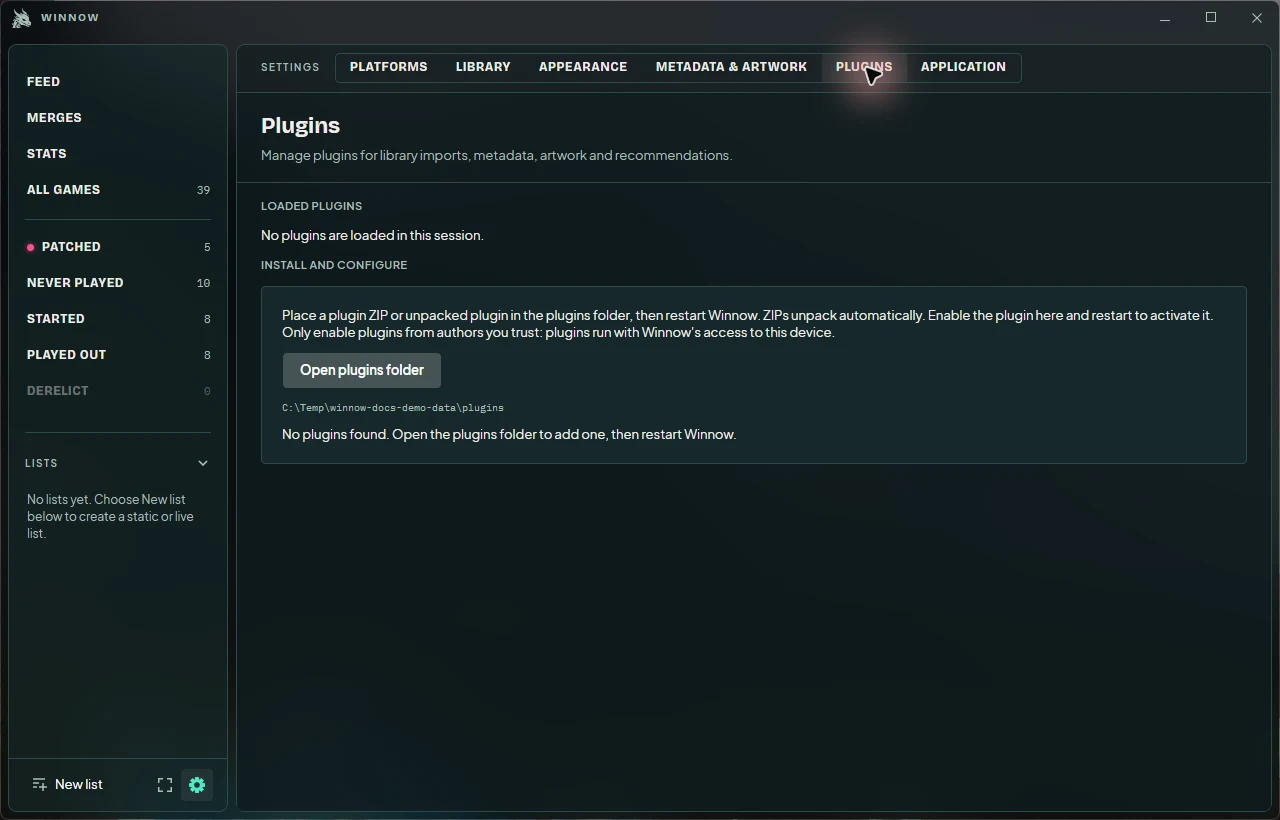
- Open Settings → Plugins → Open plugins folder. This opens
pluginsinside the selected data directory. - Place the plugin ZIP in that folder, then restart Winnow. Alternatively, place an unpacked package in its own subdirectory. The package needs its manifest, entry DLL, and dependencies together.
- Return to Plugins settings. New third-party providers start disabled; inspect the entry, enable it, and restart again to activate it.
- Confirm the plugin’s name and version appear in the loaded-plugins summary. Enter its settings and credentials, then choose Save. For an active provider, saving queues a background refresh.
Enabling or disabling takes effect after restart. The loaded-plugins summary describes this session, so it will not change just because you toggled a pending preference. Successful ZIP imports move the original archive into plugins/.archives.
Example: configure SteamGridDB
- Open Settings → Plugins → SteamGridDB. This plugin already ships enabled, so no download is needed.
- Obtain your own key from SteamGridDB API preferences, paste it into the plugin’s API-key field, and save.
- Wait for background artwork enrichment, or choose Refresh to queue another pass.
- Open Settings → Metadata & artwork to choose where SteamGridDB sits in your backdrop-source order.
SteamGridDB matches known Steam app IDs. A game without that link continues to use other artwork sources. Cached artwork remains available offline. Your explicitly selected per-game background still wins over the automatic source order.
Update, disable, or remove a plugin
- Disable
- Turn off the provider in Plugins settings and restart. Its previously imported library facts and cached metadata remain.
- Update
- Close Winnow, back up the existing package if you want to keep it, then replace its package files. Alternatively, remove the old plugin directory before placing a replacement ZIP in the plugins folder. Restart and check the loaded version.
- Uninstall
- Close Winnow and remove the user plugin’s directory. Imported facts and cached metadata remain; the provider stops running.
ZIP imports do not overwrite existing packages or replace bundled plugins. Refresh updates provider data; it does not reload a changed DLL.
Resolve installation and refresh problems
- The package does not appear
- Check the selected data directory and restart. A ZIP must contain
plugin.jsonand the entry DLL at its root or inside one enclosing folder. An unpacked package belongs in its own directory. - The ZIP remains in the plugins folder
- Inspect the diagnostic in Plugins settings. Invalid manifests, incompatible APIs, duplicate IDs, unsafe archive paths, conflicting files, and oversized packages are rejected. Ask the author for a corrected package rather than editing arbitrary manifest fields.
- Enabled, but not loaded
- Restart to apply the change, then read the current-session summary and diagnostics. A provider can also be disabled for the session after a timeout.
- Settings saved, but no new data
- Confirm the provider is enabled and loaded. Check required credentials, allow startup synchronization to finish, then choose Refresh. A saved credential is not a guarantee that the external service accepts it.
- A secret will not save
- Persistent secret storage is currently supported on Windows. Winnow refuses writes when it cannot protect a secret. On other hosts, an author may document environment-based configuration; see the SDK’s host-services reference.
When reporting a problem, include the Winnow version, plugin name/version, and diagnostic shown in settings. Do not include API keys or sign-in tokens. Authors can start with the plugin SDK guide.